Find the equipment and inventory areas
Open the weapons menu in Idle Cat Gunner before trying to move a gun. Look at the currently equipped weapon first, then the inventory below it. The numbered screenshot separates these areas so you can match a drag to its destination.
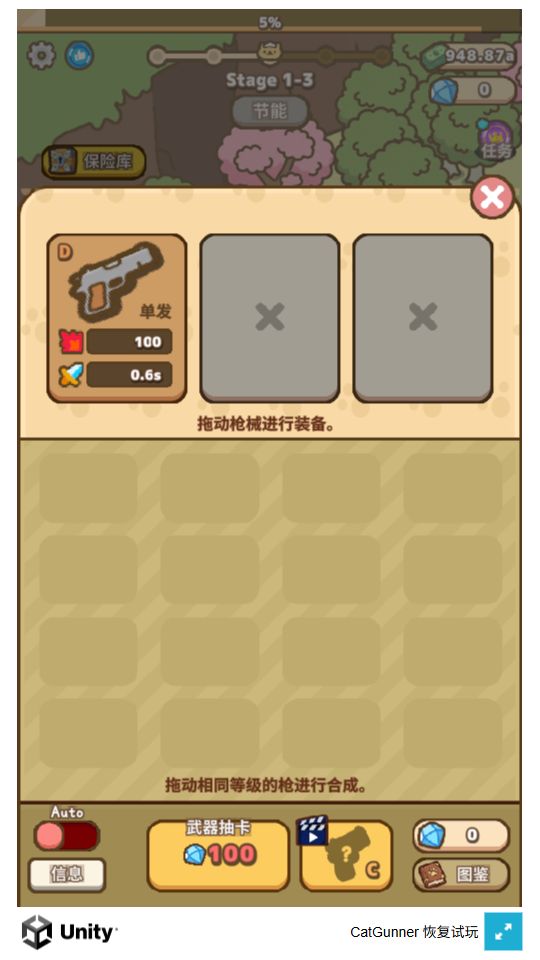
Gameplay screenshot; in-game labels depend on your language setting.
- Equipment slots: check the current weapon and the slots available in your game.
- Inventory: drag weapons to equip or merge matching levels. This screenshot has an empty inventory.
- Close button: return to battle and check the equipped weapon.
This screenshot has an empty inventory. It shows where items appear, not a completed merge or a weapon recommendation. The text inside the game may use a different language from this article. Use the weapon’s displayed level and the actual slot state in your own game.
Equip one weapon by dragging
- Find an available weapon in your inventory and inspect its level and displayed attributes.
- Press and hold it with the mouse or your finger, then move it toward an available equipment slot in the upper area.
- Release over the slot, rather than over a menu edge or another control.
- Check the equipment area after the drag, close the menu and return to battle to inspect the result.
Change one item at a time. A similar-looking icon does not by itself confirm which weapon is currently equipped, so check the equipment area instead of assuming the drag succeeded.
Merge weapons of the same level
You need two weapons with matching displayed levels. Drag one onto the other in the inventory and release over the target. Check the resulting weapon and your current equipment after the operation.
Do not choose a pair only because the artwork or color looks similar. If the inventory is empty, or you only have one eligible weapon, there is no matching pair to merge yet. Obtain another weapon through the options available in your own game; this guide does not assume a particular unlocked feature or currency balance.
Check a drag that did not register
- Make sure the weapons menu is open and no other panel is covering the target.
- For equipping, use a slot that the game currently permits you to use.
- For merging, compare both levels and place the weapon over the center of its target before releasing.
- On a phone, try the website fullscreen control for more space, then repeat one careful drag.
If the item returns to its original position, inspect the target and requirements before repeating the same action. Refreshing or clearing storage is not a way to create a missing weapon or unlock a slot.
Check equipment and coin upgrades together
If stage progress slows, review the equipped weapon alongside the attack and attack speed upgrades. Watch a battle after a change rather than replacing several items at once. For the bottom controls, use the beginner’s guide.
There is no verified universal “best weapon” ranking in this guide. Weapon choices and upgrade costs depend on the current game state; a fixed tier list would need separate testing.
Preserve your inventory and report persistent problems
Weapons and equipment belong to the game’s local browser save, not the website favorites list. Read the save and progress guide before deleting site data. If dragging still fails, send a report with the browser, device, weapon levels and the target you tried to use. A screenshot of the visible menu is more useful than a report that only says “merge is broken.”